
Videos & Training
Videos & Training
Short, practical videos for the Network Health Monitor and IntraVUE — organized by subject so you can find the one you need.
Getting Started
-
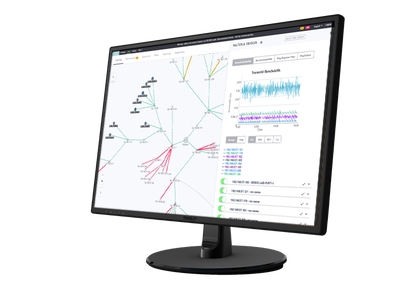 6:06 Setting Up the IntraVUE Scanner to Scan the Local Network Configure the IntraVUE scanner to discover devices on your local network — SNMP setup, scanner speed, and defining which subnets to scan.
 -
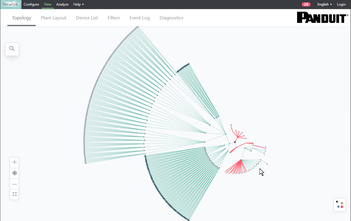 6:12 Install and Register IntraVUE Install the IntraVUE software and complete registration — entering your details on the Registration Website and applying the returned registration codes.
 -
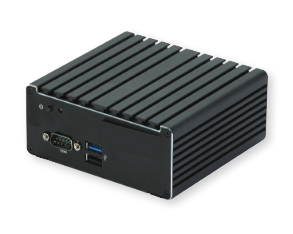 5:00 IntraVUE Edge — First-Time Setup Set the IntraVUE Edge IP addresses, apply the initial configuration, and reach the Edge-specific tools and the included IntraVUE Supervisor.
Configuration
- 4:48 Configuring SNMP Community Strings Enter the SNMP community strings your managed switches use so IntraVUE can read bridge and port tables and resolve an accurate Layer 2 topology.
-
 5:30 Top Parents and Scan Ranges Choose the right top parents and scan ranges for each network so IntraVUE organizes the topology the way your plant is actually laid out.
 -
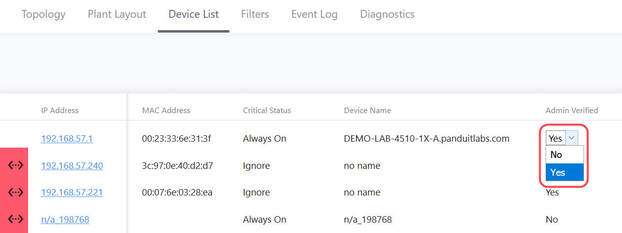 5:42 Admin Verification of Devices Confirm that discovered devices are on the ports and connections you expect, so the topology stays trustworthy as the network changes.
Network Health Monitor
-
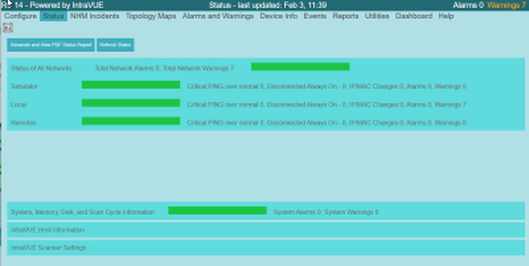 1:21 Network Health Monitor — Overview A tour of the Network Health Monitor: the green/yellow/red status bar, per-network status, automatic alarm thresholds, critical-device detection, maps, and reports.
 - 5:06 The NHM Status Page Read the Network Health Monitor Status Page — the single view of network health, its indicators, and what each element is telling you.
-
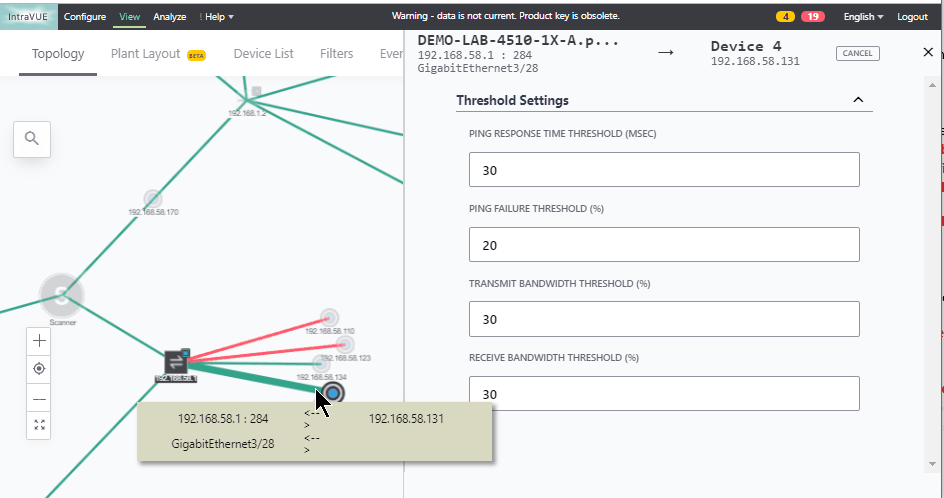 6:24 Setting proActive Alarms and Warnings Turn ping, bandwidth, and switch-error data into proActive alarms and warnings using automatic thresholds — so problems surface before the line stops.
 -
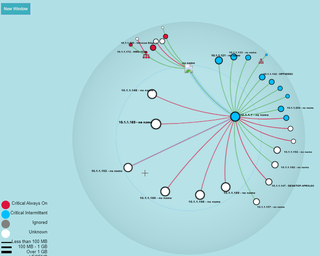 5:54 Building True SVG Plant Views Lay out true SVG plant views that map the topology onto your real floor plan, so anyone can see where a problem is on the plant floor.
Troubleshooting
-
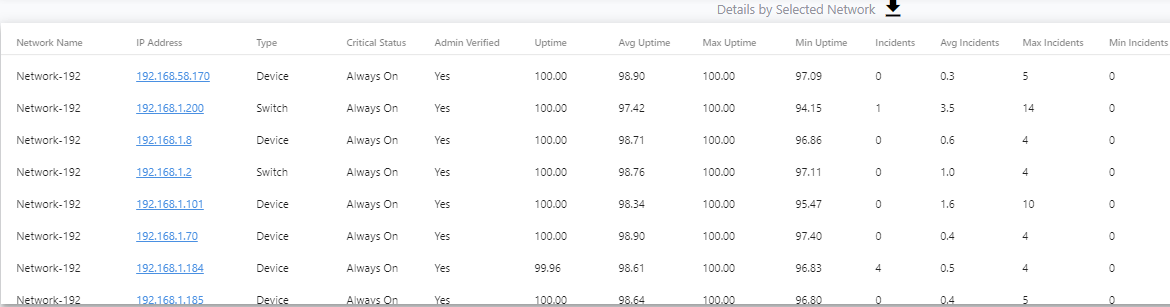 5:18 Finding Unmanaged Switches Spot unmanaged switches hiding in the topology — where multiple devices share a single managed-switch port — and document what is really connected.
 -
 5:36 Reading CRC and IfInError Reports Use the CRC / IfInErrors report to find failing cables and ports — errors sorted by switch, port, and time so you can act on the worst offenders first.
 -
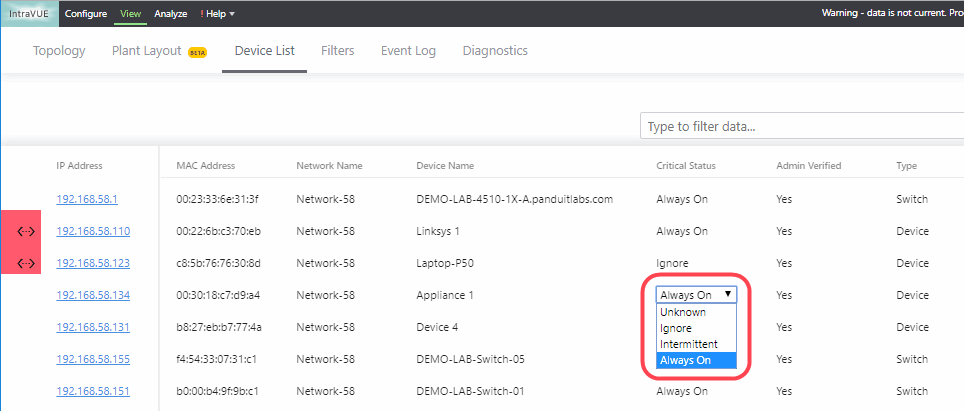 4:54 Diagnosing an Unreachable Critical Device Work through a critical device that has gone unreachable — using the topology, KPI state, and alarms to isolate where the network path broke.
No videos match your search.